
edit ·
Introducing Edit Video: Change What's in a Clip, Keep the Shot
Edit Video is live in the Video Studio. Pick a clip, say what should change, and the model re-renders it with the motion, camera and timing as shot. Swap a person for the one in a reference photo, move the scene to night, turn the car red, take the sign out. How it works, what's marked, and where it stops.
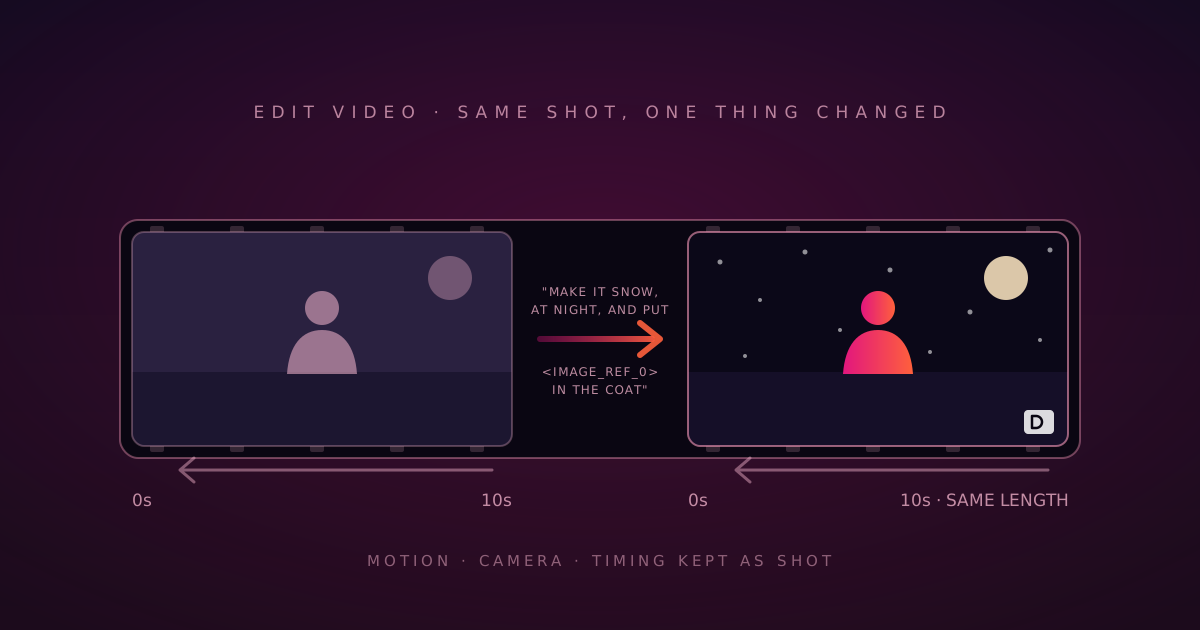
We just shipped Edit Video in the Video Studio. Pick a clip you already have, type what should be different, and the model re-renders it with that change made and everything else left alone: same motion, same camera move, same timing, same length.
Extend was the answer to "the take ended too soon". This is the answer to the other message I kept getting: "the take is perfect except for one thing". The jacket is the wrong colour. The street should be wet. There's a sign in the back that says the wrong thing. The person in the shot should be this person. Until now the fix was to re-roll the whole clip and hope the new one kept what you liked. Now you say the one thing.
What it actually does
Open Edit Video from the Post-production row, or press Edit on any clip's result page or in your gallery. Pick one of your recent clips, or upload a video from your device. Then describe the change and hit Generate.
The clip is handed to the model whole, with your instruction. It reads the motion, the framing and the cut points, makes the edit, and gives you back a video of the same length. Whatever wasn't in the instruction is meant to stay as shot: a camera that drifts left still drifts left, the person who turns at second four still turns at second four, only now she's wearing the red coat.
You can edit in three broad ways, and they mix:
Change the scene. Weather, time of day, season, location, lighting. "Make it snow." "Set this at night in Tokyo." "Golden hour instead of overcast."
Change a thing in it. Add, remove, replace or recolour. "Turn the car red." "Take the sign out." "Put a coffee cup in her hand." "Replace the dog with a fox."
Change the look. Style transfer over the whole clip. "Make it a watercolour." "Turn this into anime." "Black and white, grainy 16mm."
Reference images: who goes in the shot
Text is enough for weather and colours. It isn't enough for "put my product on the table" or "swap him for this person", so the form takes reference images too: a face, an outfit, a product, a style frame.
You address them in the instruction by position. The first image you add is
<IMAGE_REF_0>, the second <IMAGE_REF_1>, and so on (Wan reads plain
"image 1", "image 2"; the placeholder under each thumbnail tells you which).
So the prompt reads like a note to an editor: "Replace the person in the blue
coat with <IMAGE_REF_0>. Keep the camera move and the lighting." The images
are shrunk to about a thousand pixels on the long side before they go up,
which is plenty for a face or a label and keeps the request small.
This is the part of the feature we spent the most time on, and not for the technical reasons. More on that below.
Two models, and why only two
Edit Video offers the models that edit a clip rather than generate one, which today means two.
Gemini Omni 1.1 Flash is the default and wears the Best Edits badge. It takes up to ten reference images, reads a very long brief if you want to give it one, and generates audio natively, so an edit that changes the scene gets sound that matches it. If you don't know which to pick, pick this.
Wan 2.7 Edit is the balanced option: instruction edits and style transfer at 720p or 1080p, up to three reference images. It's the one to reach for when the edit is mostly a look, and you want to pick the output resolution.
There's no duration picker and no aspect-ratio picker, on purpose. The output follows the source, so both would be lying to you.
Two things you'll notice are missing from the form. The Enhance prompt
toggle isn't there, because the enhancer rewrites a request as a scene
description, and "replace the man in the red jacket with <IMAGE_REF_0>" is
not a scene description; it would rewrite your edit into a new video. And
there's no Keep original audio switch. We shipped one for about a day.
Every edit model re-generates the clip, so the original track never lines up
with the new footage again, and speech a quarter-second out of sync is the
first thing anyone notices. The result's sound is always the model's.
How to get a clean edit
Describe the edit, not the whole scene. The prompt box starts empty and the hint under it says this in five words. The model has the clip; it doesn't need it described. "Turn the car red" beats a paragraph about a red car on a coastal road at dusk, because the paragraph invites the model to rebuild the road and the dusk too.
Say what should stay. If the camera move matters, say "keep the camera move". If the light matters, say so. An edit model is a generator with a strong prior toward the source, not a compositor, and naming what you care about is how you sharpen that prior.
One change per pass. You can stack edits in a prompt and often it works. But when a five-change prompt comes back with three of them right, you don't know which two fought. Make the big change, check it, then press Edit on the result and make the next one. The result becomes the new source, so the chain is one file, the same way Extend works.
Keep the source short and clean. The cap is ten seconds today. A longer clip is refused before you pay, with the model's limit shown next to it. For a longer sequence, edit it scene by scene and join the pieces in the Movie Editor, which is one click from the result. Compression artefacts and heavy motion blur in the source come back amplified; if you're choosing between two takes to edit, take the sharper one.
What's marked, and why
This is the part I said I'd come back to.
A tool that can put a real person's face into a video needs to be built as if someone will try to misuse it, because someone will. So two rules sit on top of the moderation every generation already goes through.
Once, before your first edit, you agree to four things. You have the right to the footage and the reference images, and everyone recognisable in them has agreed to appear. Nothing sexual, defamatory or deceptive about a real person, and nothing passed off as genuine (comedy is fine). Edits made with a reference image carry a visible mark, and you don't remove it. The Terms apply. Four sentences, remembered on your account, never asked again.
Every result made with a reference image carries the DreamFort mark. Not as an option, and not added on the server after the fact. The edited clip comes back from the provider and is rendered in your browser, by the same ffmpeg the Movie Editor exports with, with the mark burned into the corner. That marked file is the result: it's what plays, what you download, what goes to your library. The unmarked provider file is never shown, never saved, never downloadable. If the mark render fails, you get a button to run it again, not the clip without it. Wan adds its own visible watermark on top for these edits, so on that model you'll see two.
An edit with no reference image changes the scene, not who is in it, and comes back as rendered.
I know a mark on the picture is a cost for the legitimate case, which is most cases. A product swap in an ad you'll run under your own name doesn't need one. We're taking that cost anyway, because the alternative is a tool that makes an unmarked video of anyone from a clip and a photo, and I'm not willing to ship that. If your use needs a clean frame, describe the change in text instead; text-only edits aren't marked.
What it costs
The price shows in credits before you generate, same as everywhere in the studio (1,000 credits = $1). The bill is the output at the model's rate, which for an edit means the source's length, since that's what comes back. Gemini prices by the source's resolution tier, so a 720p clip costs less to edit than a 4K one; Wan prices by the resolution you pick. Each reference image adds a small fixed fee, and there's a small per-second charge for the model reading the source. The preview accounts for all of it, so the number you see is the number you pay.
Privacy, as usual
Edit runs through the same anonymity layer as the rest of the studio. Requests are encrypted on your device, identity is split from content by Oblivious HTTP relays, and decryption happens only inside attested secure enclaves. No single party holds both who you are and what you made. The full architecture is here.
For a feature that takes your own footage and your own photos as input, this matters more than usual. Uploads stay in your browser until you press Generate; the file goes up only then, with its own progress bar, and the cap is 100 MB. The reference images travel the same way.
Go fix the one thing
Live now, free to start, no card.
Make a clip to edit in Text to Video
If you've got a clip that's perfect except for one thing, this is for it. And if an edit changes something you didn't ask it to, tell us what; holding the shot still is the part we'll keep working on.
Gemini is developed by Google. Wan is developed by Alibaba. DreamFort is not affiliated with Google or Alibaba.
- edit
- video
- video studio
- announcement
- gemini
- wan
 Questions or thoughts? Bring them to r/DreamfortThe team and other DreamFort users answer there.